Links, Images and Paths
Links
The HTML markup to create links is the anchor <a> </a> tag. Each anchor tag contains an href attribute whose value is the web address, url, to traverse.
For more info, view the <a href="https://developer.mozilla.org">MDN documentation</a>.

Images
Images are not embedded in html files; that are linked in the file and loaded by the browser when the html page is loaded. The <img /> tag is a singleton tag, no closing tag, and must include both the src and alt attributes.
Key attributes:
src- path to the imagealt- alternative textual description
Attributes such as title, width, and height are optional.
The alt attribute is required because screen readers rely on the text provided in the alt tag to provide information on the image.
Absolute vs Relative Paths
Absolute - external
When referencing a page or resource on an external site, a full absolute URL reference is required (protocol, domain, path, file).
By default, clicking on a link opens the new page in the current tab. To have the page open in a new tab set the attribute: target="_blank".
Clicking on the the text Google when viewing the following page loads the Google search page in the current tab. An absolute link is necessary to load the external site.
For more info, enter search terms in
the <a href="https://google.com">Google</a> search bar.
Relative - internal
When referencing a resource that is on the same server, use relative referencing.
If you create a site, you should keep all the html pages and images together under a root folder. You link to the other pages and the images with relative paths. When you are ready to host the site on a webserver, you simply drag the root folder to the webserver and all the subfiles go with it, the relations are all still the same and the links all work.
If the URL does not include the http:// then the browser will request the current server for the file.
Relative paths can include path notations, . for the current directory and .. for the parent directory.
<div class="three-col">
     <div class="card">
          <img src="images/tech_img.jpeg"  alt="technology">
          <h3>Languages</h3>
     </div>
     <div class="card">
          <img src="images/Uga_1.jpeg" alt="UGA">
          <h3>Leadership and Experience</h3>
     </div>
     <div class="card">
          <img src="images/uga_arch_2.jpeg" alt="uga arch">
          <h3>Skills</h3>
     </div>
 </div>

If an image is not found at the address specified in src, most browsers display a red x for the image.
Web Files and Folders
Typical directory structure for source files:
- To link to a file within the same folder, simply use the file name.
- To link to a file within a subdirectory, use the name of the subdirectory and a slash before the file name.
- Use
../to reference a folder above the current one. If trying to reference a file several levels above the current one, simply string together multiple../. - Use
../to move up to the appropriate level, and then use the same technique as for child or grandchild directories.
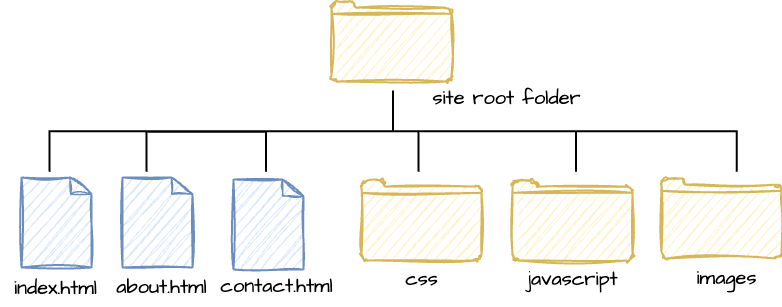
All .html files go in the top-level. index.html is the name of the homepage. All images go in the images folder; all javascript files go in the js folder, etc. The path to link to an image from index.html is images/nameoftheimage.jpg.
/ at the start of a relative path indicates from root. Do NOT start a relative path name with a / unless you are traversing from root.