State
So far, we have only built static applications where the value of our data doesn't change. In React, state refers to dynamic data that can change - data that is mutable. When the value of a state variable changes, React automatically rerenders the UI affected.
-
State refers to dynamic data that can change in a client component.
-
Whenever the state changes, React re-renders the affected UI to the browser.
-
A component can pass the value of its state to a child via props.
-
State is a React feature that triggers automatic UI update based on change in data.
Toggle without state example
To demonstrate why state is necessary for updating the UI, let's consider an example without using state. We'll declare a boolean, isOn, as a regular TypeScript variable. We include a button that, when clicked, toggles the value of the boolean variable.
Open your developer tools so you can see the output of the console.log in this example code.
function Toggle() {
  let isOn = false;

  function handleClick() {
    isOn = !isOn;
    console.log('isOn is now:', isOn);
  }

  return (
     <button
      style={{
        all: 'revert'
      }} onClick={handleClick}>
      {isOn ? 'ON' : 'OFF'}
    </button>
  );
}
In the above example, we see in the console that the value of isOn toggles with the click of the button. However, the button doesn't reflect the change in isOn. Why?
React will track changes in dynamic data and updates the UI as needed. However, we must notify React what to track, and how to update. For this, React provides the useState hook.
useState hook
To accomplish the magic that is React state, React provides the useState hook.
-
By calling
useStateinside a component function, you register some data with React. -
React will track the registered value and whenever you update it, React will re-evaluate the component function in which the state was registered.
-
React validates whether the UI needs to change because of changed data.
-
If React determines that the UI needs to change, it updates the DOM where updates are needed.
-
An initial state value is registered by passing it as a parameter to
useState(). In this example, an empty string (' ') is registered as a first value:
const [errorMsg, setErrorMsg] = useState(' ');
-
useStatealways returns two things: the current value and a function to update it. -
The first element in the array returned is the current state value. You can use this element in any place where you need the current value.
-
You update the state by calling the updating function - when a change in the state value is made.
-
The updating function - the second array element returned by
useState- triggers internal UI updating effects. -
React will re-evaluate a component function if the updating function was called in the component function or a parent function.
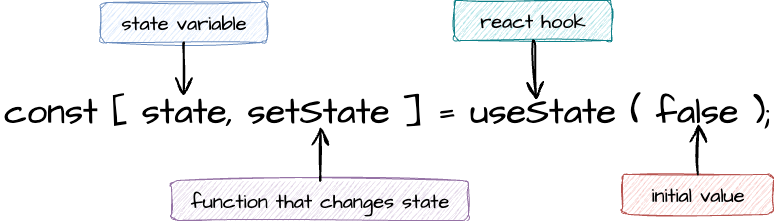
See the diagram below for how to use the useState hook to set up state variables.. useState() returns an array with two elements, the state variable and the updating function:
Responding to events
React is reactive — it updates the UI based on state. But state doesn’t change on its own — most often it's user events that trigger the change.
So, when a user does something (like clicking a button) that changes the value of a state variable, you:
-
Handle the event using an event handler function.
-
Update state using the update function (setState)
Updating state triggers a re-render of the component reflecting the new state.
Toggle state example
Consider this example. which declares isOn to be a state variable. This is done with useState. We call the updater, setIsOn when the button is clicked:
import { useState } from 'react';

function Toggle() {
  const [isOn, setIsOn] = useState(false);

  function handleClick() {
    setIsOn(!isOn);
  }

  return (
    <button onClick={handleClick}>
      {isOn ? 'ON' : 'OFF'}
    </button>
  );
}
... and we can try this one in the live editor.
function Toggle() {
  const [isOn, setIsOn] = useState(false);

  function handleClick() {
    setIsOn(!isOn);
  }

  return (
    <button onClick={handleClick}>
      {isOn ? 'ON' : 'OFF'}
    </button>
  );
}
When a state variable changes via the updater, React handles the rerender of the UI. In this example, the button text updates.
There are no parentheses on the event. We do not call the event handler function but rather pass it. React will call your event handler when the user clicks the button:
-
onClick={handleClick}sets the handler for the user event to thehandleClickfunction -
setIsOn(!isOn)updates state in response to the event -
React automatically re-renders with the new isOn value
Button counter example
Let's say we have a count that changes when a button is clicked. We could set this up with:
const [count, setCount] = useState(0);
Here we established a state variable, count, an updating function setCount and an initial value, 0, for count. We could implement the button that updates the count with:
import { useState } from 'react';

function Counter() {
  const [count, setCount] = useState(0);

  return (
    <div>
      <p>You clicked {count} times</p>
      <button onClick={() => setCount(count + 1)} >Add One</button>
    </div>
  );
}
Since we do not call the onClick event handler function, we can define it with an arrow function. React calls your updater when the user clicks the button:
Update based on previous
Often we make updates that are based on the previous value. This is true when updating a count - we take the previous count and add to it. When updating based on a previous value, we pass a function to the updater to properly perform the update.
setCount(prevCount => prevCount + 1)
React will call the function on update and pass the latest state value to that function. So, you are to provide a function that accepts at least one parameter: the previous state value. The value will be passed into the function automatically by React, when React executes the update function.
When an update is based on the previous value, we pass a function to the updater - ie prevCounter => prevCounter + 1.
The example below is the correct way to update the counter which is based on the previous value of count:
import { useState } from 'react';

function Counter() {
  const [count, setCount] = useState(0);

  return (
    <div>
      <p>You clicked {count} times</p>
      <button onClick={() => setCount(prevCount => prevCount + 1)} >Add One</button>
    </div>
  );
}
function Counter() {
  const [count, setCount] = useState(0); // count is 0 initially

  return (
   <div>
      <p>You clicked {count} times</p>
      <button onClick={() => setCount(prevCount => prevCount + 1)} >Add One</button>
    </div>
  );
}
In the live code editor above, what happens if you don't use state here? What about a different updater of count? How about adding another button that also updates count, do we lose any counts when we click back and forth on the two different buttons?
Other reasons to update state
Thus far, we update our state upon user events (e.g. upon a click). That's very common but not required for state updates! You can update state for many other reasons, for example:
- an Http request that completes and causes a state update
- a timer expired (set with
setTimeout())
useState and other React hooks like useEffect, or useContext are only client-side JavaScript features. In a Next.js framework, these features are only available in client components.