Passing Props
Just like we make functions and methods reusable in regular programming by passing parameters, React components become reusable by passing parameters. In React components, these are known as props, short for properties.
- props is a JavaScript object that contains the data passed into a component from its parent.
- the primary way components communicate with each other - similar to function parameters.
- every React component function automatically receives one argument: the props object.
- are read-only
- allow you to make components reusable and dynamic.
Let's consider the Greeting component that we started with. It's not very useful rendering the same generic message all the time. Wouldn't it be more useful if we could personalize the greeting? We'll update the Greeting component to accept a parameter - a prop - in React.
type GreetingProps = {
  name: string;
};

function Greeting(props: GreetingProps) {
  return <h1>Good morning {props.name}!</h1>;
}
export default Greeting;
Destructuring props
As with any JavaScript object, we can destructure the properties of the props object. Here is an example where we destructure the name property from the props object.
type GreetingProps = {
  name: string;
};
function Greeting({ name }: GreetingProps) {
  return <h1>Good morning {name}!</h1>;
}
export default Greeting;
We include the type GreetingProps because we are implementing in TypeScript. TypeScript requires that we describe the types for the props. This makes for more
robust code.
Passing props
Then we can use the Greeting component and pass different values in the prop object:
<Greeting name="Dolly" />
... which renders this:
Passing props and conditional rendering example
Here's another variation on conditional rendering of components:
import Profile from "./Profile";
import Signup from "./Signup";

type IsLoggedInProps = { isLoggedIn: boolean; }

function IsLoggedIn({isLoggedIn}: IsLoggedInProps ) {
  return (
    <>
      <h1>My Application</h1>
      {isLoggedIn ? <Profile /> : <Signup /> }
    </>
  );
}
Multiple props
We could also supply the message as a prop and this component is more versatile. msg and name are properties of the prop object.
type GreetingProps = {
  msg: string;
  name: string;
};
function Greeting(props: GreetingProps) {
  return <h1>{props.msg} {props.name}!</h1>;
}
export default Greeting;
Or destructure the props object as:
type GreetingProps = {
  msg: string;
  name: string;
};
function Greeting({ msg, name }: GreetingProps) {
  return <h1>{msg} {name}!</h1>;
}
export default Greeting;
We pass values for msg and name when we use Greeting in another component:
<Greeting msg="Good afternoon" name="Danny" />
And it renders this:
We pass props to components with the same syntax as HTML attributes. property="value".
Default prop values
We can provide default values for props. If prop values are not passed, the default values are supplied and no errors result.
The ? on the types designate that this value is optional, and null is valid.
type GreetingProps = {
  msg?: string;
  name?: string;
};

function Greeting({ msg = 'Hello', name = 'Friend' }: GreetingProps) {
  return <h1>{msg} {name}!</h1>;
}
export default Greeting;
If you pass both props, it uses your values. If you pass neither, it renders the default values: Hello Friend!
<Greeting msg="Good morning" name="Dolly" />  // Good morning Dolly!
<Greeting name="Timothy" />                    // Hello Timothy!
<Greeting />                                  // Hello Friend!
children prop
We have looked at React passing data to props as attributes, but React does not just package attributes into the props object. It also adds another property, the children property. This is a built-in property with the reserved name children.
Sometimes, we create a component that just serves as a wrapper around any content in between the tags. The children property holds the content provided between the component's opening and closing tags.
Whenever you have content between an open JSX tag and a close JSX tag, the component will receive that content in the children prop.
The typical use of a Card component is to create a visual container - with CSS - for content. Typically, we add some rounded borders and drop shadows with a Card. To implement this, it makes more sense to wrap the content in open and close, <Card> </Card>, tags rather then to pass attribute props. Consider this example:
type CardProps = {
  children: React.ReactNode;
};

function Card({ children }: CardProps) {
  return (
    <div className="border border-gray-300 rounded-lg p-4 max-w-md shadow-sm bg-white">
      {children}
    </div>
  );
}
export default Card;
Using the Card component:
<Card>
  <h2>Hello!</h2>
  <p>This is inside the Card component.</p>
</Card>
children is a built-in prop that represents the content nested between a component's opening and closing tags.
ReactNode
children: React.ReactNode;
ReactNode is a TypeScript type that represents anything rendered by React. It is part of react type definitions and is typically used when defining the children prop in a component. ReactNode gives you the ability to accept anything React can render.
BlogEntry example
Consider the content of a blog entry below.
In this example, children will contain the content between the tags.
type BlogEntryProps = {
  title: string;
  author: string;
  children: React.ReactNode;
};

function BlogEntry({ title, author, children }: BlogEntryProps) {
  return (
    <div className="myBlogCSS">
      <h2>{title}</h2>
      <p>By {author}</p>
      <div>{children}</div>
    </div>
  );
}
export default BlogEntry;
Usage of BlogEntry component:
...
<BlogEntry title="My React Journey" author="Jimmy Neutron">
  <p>I started learning React last year, and it’s been a rewarding experience.</p>
  <p>Components, props, and hooks have really changed the way I think about web development.</p>
</BlogEntry>
...
title and author are assigned values and passed as named props. Anything else between the <BlogEntry> </BlogEntry> tags is passed in the children prop.
One way data flow
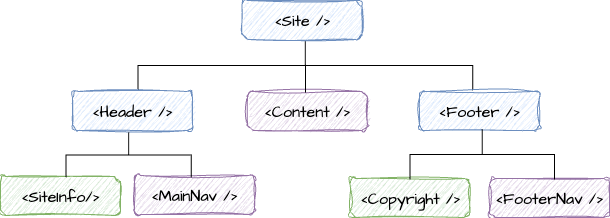
React only allows one-way flow of data. Data in React apps only flows down, from parent components to children components. Once data is passed down from a parent to a child, the value should not change. Data passed down as props is immutable.
Since we cannot pass data up the component hierarchy, we want to start passing props at a level in the hierarchy where that data will reach all necessary children components that need the data. Consider a component design as in the diagram where both the <SiteInfo /> component and the <Copyright /> component both need to render the site name.
We get the site name by calling a function getSiteName(). Where should we define getSiteName? A good solution would be to call getSiteName() in of the <Site /> component. Then we can pass the data down through the <Header /> and <Footer /> components as props. Finally, we’ll pass it into the <SiteInfo /> and <Copyright /> components. As we can see, the <Site /> component is the first parent component that shares both <SiteInfo /> and <Copyright /> as children.
Live props example
Explore the syntax in the live code editor below. What happens if you switch the order
of the props? What if you miss a "? Try supplying a default major. Switch the props syntax. What happens?
function WelcomeClassroom() {

    function StudentCard({ name, major }) {
        return (
            <div style={{
                border: '1px solid #ccc',
                borderRadius: '6px',
                padding: '10px',
                marginBottom: '8px'
            }}>
                <strong>{name}</strong>
                <p>Major: {major}</p>
            </div>
        );
    }
    return (
        <div>
            <h2>Class Roster</h2>
            <StudentCard name="Alice Johnson" major="Computer Science" />
            <StudentCard name="Bob Lee" major="Data Science" />
            <StudentCard name="Carlos Rivera" major="Cybersecurity" />
        </div>
    );
}
The live code editor (above) can only handle components in one file. Best practice is to put each component in a separate file and export and import as needed.