What is CSS?
CSS stands for Cascading Style Sheets, and is a style sheet language used to control the presentation of an HTML document. CSS separates the presentation from the structure (HTML) and allows for more consistent styling across a website. We'll use CSS for colors, layout, fonts and more.
Colors on the Web
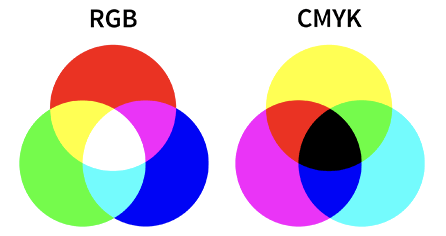
RGB and CMYK are the two main color models used for designs. In the RGB color model, light is used to produce different color variations for digital design and technology. Anything that uses light to produce an image uses RGB colors.
RGB colors are used for on-screen viewing. RGB is an additive color model, meaning it adds red, green, and blue light together to create the different colors you see on a screen. The color of each pixel on a screen is determined by the amount of red, green, and blue light it emits.
Color Names
Color keywords are case-insensitive identifiers that represent a specific color, such as red, blue, black, or lightseagreen. List of color keywords.
Color number
Colors can also be specified in RGB format with a HEX number. An RGB color value specifies an intensity of red, green and blue, in that order. Each parameter defines the intensity of the color as an integer between 0 and 255.
A few sites that are helpful for choosing colors with the HEX color number are:
Where does CSS go?
Inline CSS
CSS can be added in the style attribute of HTML tags.
<h2 style=”font-size: 24pt;”> Hello </h2>

<h2 style=”color: red; font-size: 24pt;”> My Heading </h2>
Internal CSS
Style rules can be placed within <style> </style> tags inside the <head> section of the HTML page.
Although an improvement over inline CSS, internal CSS is largely discouraged.
<head>
	<title>Athens Coffee Cave</title>
	<style>
		body {
        background-color: #e3e3e3;
     }
     h1 {font-size: 24pt; }
		 h2 {
			   font-size: 18pt;
			   font-weight: bold;
		 }
	</style>
</head>
External CSS
The preferred way to use CSS is in external CSS files.
- External style sheets are linked in the head section of html pages.
- Css files have a .css extension.
- Changes to an external style sheet are reflected in the HTML documents that link to it.
- Browsers cache the external style sheet which improves performance.
<head>
	<title>Athens Coffee Cave</title>
	<link rel=”stylesheet” href=”css/styles.css”>
</head>
Developer Tools
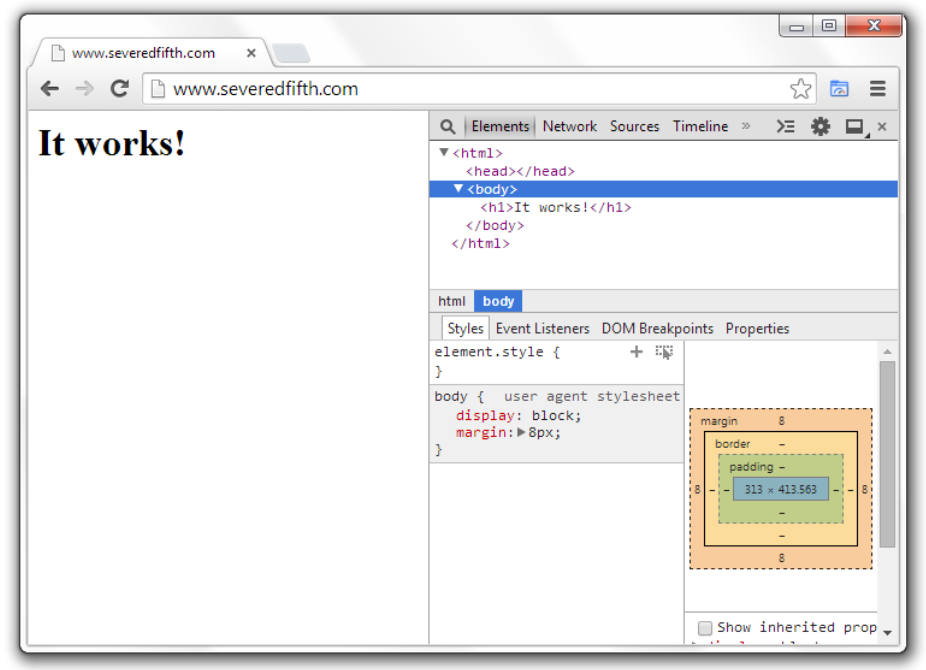
Did you know that you can view the source for any website by using the browser's Developer Tools?
I am using Chrome for my browser so let's use the Chrome Develop Tools to view the HTML source for this page.
- All major browsers include Developer Tools - DevTools
- All include similar fundamental tools, e.g., for inspecting the properties and values applied to elements on your page, and making changes to them from the editor.
- Chrome Developer Tools are probably used most for web development but Firefox has added great tools for layout.
To access Developer tools, right click (CTRL click on Mac) in the browser window -> inspect.
CSS Syntax
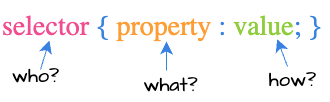
Everything in CSS follows this pattern. It begins with a selector followed by curly braces. Inside the braces is a rule that changes the appearance of a property and give it a new value. Each rule ends with a semicolon.
Below the selector is h1. We change the text color property and give it a new hex color number value.
h1 { color : #911F27; }
Selectors
The selector may be either an HTML element, class or id.
Element Selector
Selects all elements with the specified element name - ie. html tag. Multiple elements may be separated by commas.
/* set all images to 100 x 200 */
img {
	width: 100px;
	height: 200px;
}

/* make all h1 & h2 elements magenta */
h1, h2 {
	color: magenta;
}

/* remove default margin and set background color of entire page */
body {
	background-color: #c3c3c3;
	margin: 0;
}
Class Selector
Begin with a dot ( . ).
Matches elements that belong to the specific class.
/* class selector begins with . */
.complete {
	color: green;
}

/* All elements with class="spacious" */
.spacious {
  margin: 2em;
}

/* All <li> elements with class="spacious" */
li.spacious {
  margin: 2em;
}
Id Selector
Begins with a #.
Selects a specific element on the page with a matching id.
IDs are unique and are attached to only one element on a page.
/* id selector begins with # */

#banner {
	color: orange;
	height: 200px;
}
Descendent Selectors
Descendent selectors combine two selectors. Specify elements with a particular ancestor (parent, parent's parent, parent's parent's parent, etc). For example:
/*  select all <a>’s that are nested inside an <li> */
li a {
	color: teal;
}

/* Select items that are descendants of the "my-things" list */
ul.my-things li {
  margin: 2em;
}
Child Selectors
The child combinator (>) is placed between two CSS selectors. It matches only those elements that are direct children of the first selector.
/*  List items that are children of the "my-things" list  */
ul.my-things > li {
  margin: 2em;
}

/*  Selects all <p> elements where the parent is a <div> element */
div > p {
	color: white;
}
Class vs Id Selectors
Class selectors allow you to target multiple elements on the page. HTML elements labeled with the same class can be styled using the class selector which begins with a dot ( . ) followed by the class name.
Id selectors allow you to target a specific element by its id listed in the tag.
HTML elements labeled with an id can be styled using the id selector which begins with a # followed by the id name.
Properties
The CSS property specifies what to style of the targeted HTML element(s).
For a list of all the available CSS properties:
/*
   background-color and color are
   the two css properties styled
   by this css.
 */
body {
   background-color: #EAF6F6;
   color: #66BFBF;
}