Mongodb Atlas Database Setup
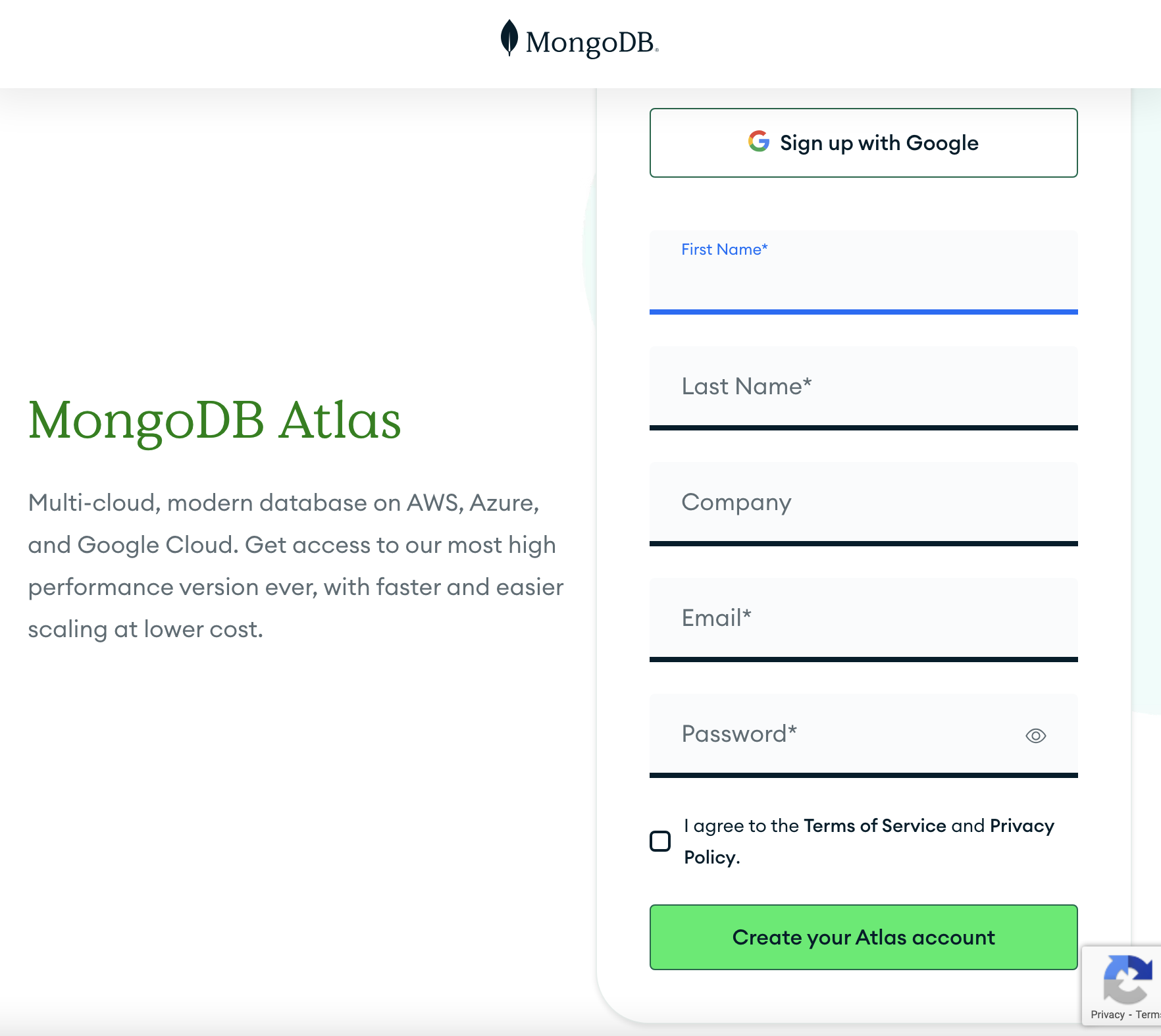
Sign up for a Mongo Atlas Account
We will use a free MongoDB cloud service called Atlas.
Follow setup instructions on the mongo site:
Getting Started with Mongo Atlas Database
Follow Steps
- Register/signup for an Atlas account.
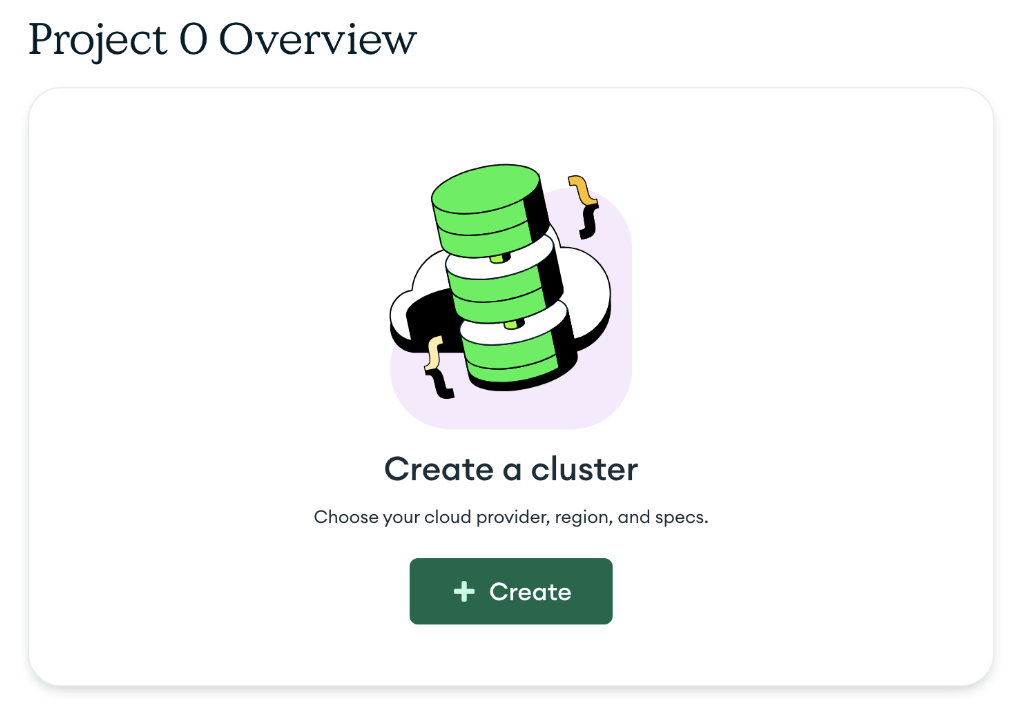
Create a Cluster
- Build a Cluster.
- Select Build a Database. Atlas creates an organization and project for you.
- Choose the free, shared cluster tier, M0. In the Name input box, enter the name items for your collection name.
- Uncheck the Automate security setup box.
- Uncheck the Preload sample dataset box.
- Choose your favorite cloud provider and the region closest to you.
- Finally, click on Create Deployment.
- Manage the list of trusted IP addresses. Can select 'Allow Access from Anywhere' for access from any IP address. Can enter IP address 0.0.0.0/0 for access from any IP address.
- Click Add IP Address to add it to the network allowlist.
- Manage database users for your cluster. Create a database user. Pick any username and password you want. They will be used when you want to connect to your database. (Save these!)
- Click Create Database User to create the user.
-
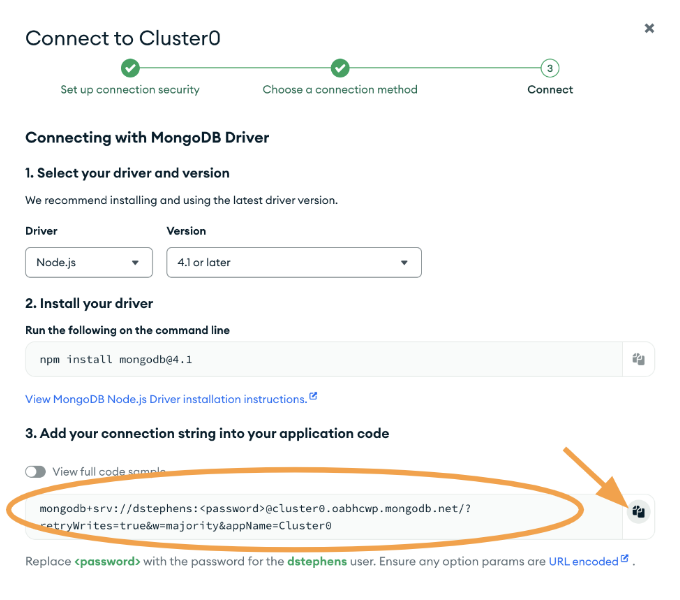
Connect: Choose the Drivers connection method. From here you will get the connection string you need to connect to your database.
-
Connection string: Copy the connection string:
danger
Do NOT install Atlas CLI, Docker, or MongoDB locally. You are using MongoDB Atlas (cloud version) in the browser.
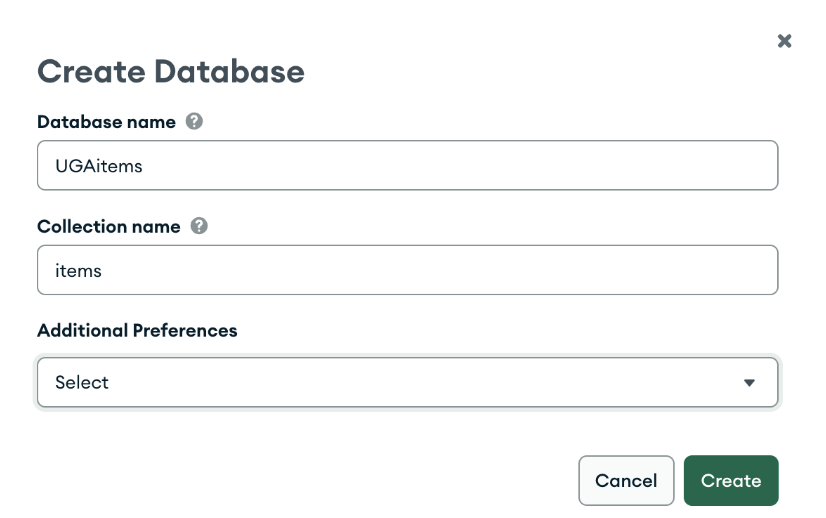
- Optional: Choose the Add my own Data and enter a database name and collection name.
The example below was created for the UGAitems class demo.
Create a Database
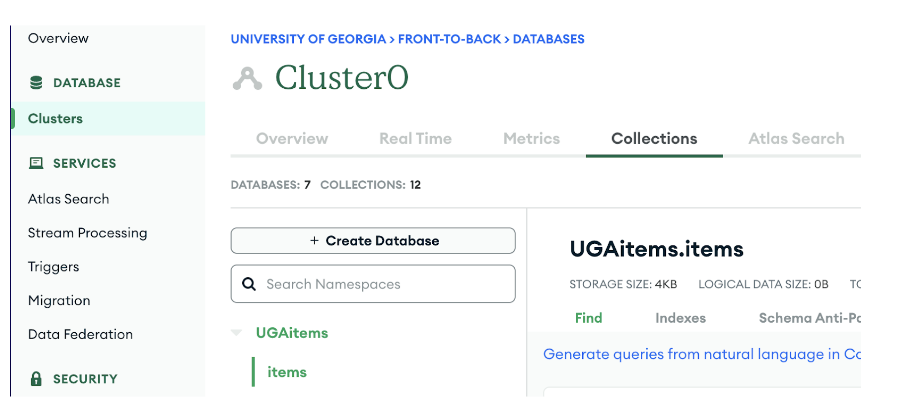
We have a database, UGAitems, with a collection, items.