Connect to Mongodb
Before you begin the steps below, you must have a MongoDB Atlas cluster set up. You may follow the steps in the previous page, "Mongo Atlas Database Setup".
Adding the database to our project
Our database is ready, and we need to add it to our project.
.env file
- Add a
.envfile at the root of the project folder (not inside src, beside src).
In the.envfile, add environment variables for our connection string and domain:
NEXT_PUBLIC_DOMAIN=http://localhost:3000
NEXT_PUBLIC_API_DOMAIN=http://localhost:3000/api
MONGODB_URI=MyConnectionString  (with your password and database name inserted)
Enter the name of the database before the ? in the connection string. For example:
MONGODB_URI=mongodb+srv://dstephens:mydbpasswordd@cluster0.oabhcwp.mongodb.net/UGAitems?retryWrites=true&w=majority&appName=Cluster0
Install mongodb and mongoose (ODM) in your demo project:
% npm install mongodb mongoose
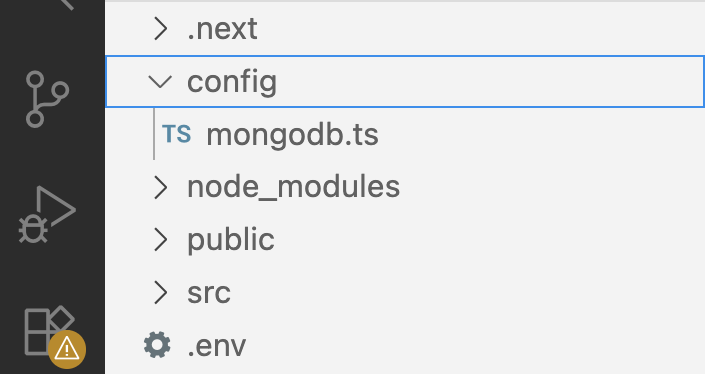
create config folder and mongodb.ts file
Create a config folder at the root and create a mongodb.ts file in the config folder:
Add the following connection code to the mongodb.ts file.
import mongoose from "mongoose";

const connectMongoDB = async (): Promise<void> => {
 try {
   const uri = process.env.MONGODB_URI;
   if (!uri) {
     throw new Error("MONGODB_URI is not defined in environment variables.");
   }

   await mongoose.connect(uri);
   console.log("Connected to MongoDB.");
 } catch (error) {
   console.log("Error connecting to MongoDB:", (error as Error).message);
 }
};


export default connectMongoDB;
Add a call to connectMongoDB() in the Home component:
export default function Home() {
     	connectMongoDB();
	return;
And check the console for connection to the database message:
Connected to MongoDB.